Plans
Organize content with plans and calendars
Plans
Plans organize your content at the highest level. Think of them as content calendars, campaigns, or themed series.
What is a plan?
A plan groups related briefs. Examples:
- "Q3 2026 Content Calendar"
- "Product Launch: Feature X"
- "SEO Improvement Series"
- "Customer Success Stories"
Creating a plan
From the header Create menu
- Open the Create menu in the workspace header
- Select Plans
- Enter:
- Name: What you'll call this plan
- Description: Goals or context (optional)
- Click Create
From the sidebar
- Go to Create → Plans in the sidebar
- Click Create plan or the + button
- Enter:
- Name: What you'll call this plan
- Description: Goals or context (optional)
- Click Create
Plan structure
A plan contains:
- Name: Display title
- Description: Context and goals
- Briefs: Individual content pieces
- Status: Active, completed, archived
Adding briefs to a plan
- Open the plan
- Click Add brief
- Create the brief with topic details
- The brief is automatically linked to the plan
Or create a brief separately and assign it to a plan.
Managing plans
View plans
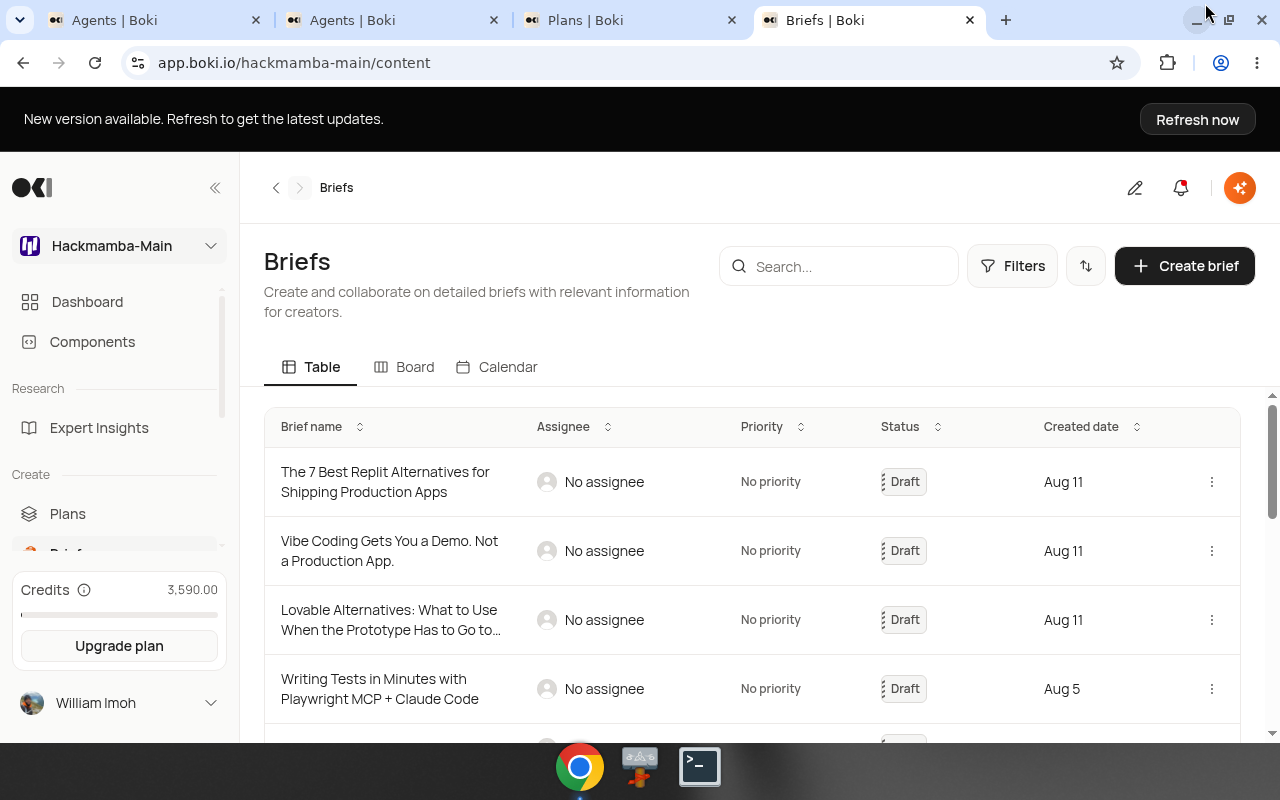
The Plans page shows:
- All plans in your workspace
- Brief count per plan
- Plan status
Inline table editing
Edit key fields directly from the plans table without opening each item:
| Field | Editable inline |
|---|---|
| Status | Yes |
| Tags | Yes |
| Assignee | Yes (includes "No assignee" option) |
Your edit shows immediately while Boki saves it in the background.
Edit a plan
- Open the plan
- Click Edit or the pencil icon
- Update name or description
- Save changes
Editing unrelated fields (like name or description) does not change the plan's visibility setting.
Archive a plan
Completed plans can be archived:
- Open the plan
- Click the menu (three dots)
- Select Archive
Archived plans are hidden from the main view but not deleted.
Delete a plan
- Open the plan
- Click the menu (three dots)
- Select Delete
Warning: Deleting a plan removes it permanently. Briefs in the plan become unassigned but are not deleted.
Inline comments
Leave comments directly on plan content:
- Highlight text in the plan name or description
- Click the comment icon
- Type your note
- Click Post
Comments can anchor to specific quoted text, keeping feedback tied to the exact words it references. This works the same way across plans, briefs, and articles — see Editor comments for details.
Best practices
Name clearly: "Q3 Content" is better than "Content Plan 1."
Add descriptions: Explain the goal so future-you remembers.
One theme per plan: Don't mix unrelated content in one plan.
Archive when done: Keep your active view clean.
Related
- Briefs — Create briefs within plans
- Articles — Write articles from briefs
- Create overview — The full workflow